Blog · Part of the Safety and Privacy guide
Phone Privacy Settings Every OnlyFans Creator Should Change
The phone settings to change for privacy as an OnlyFans creator: camera location, photo metadata, cloud sync, lock screen previews, app locks and 2FA.
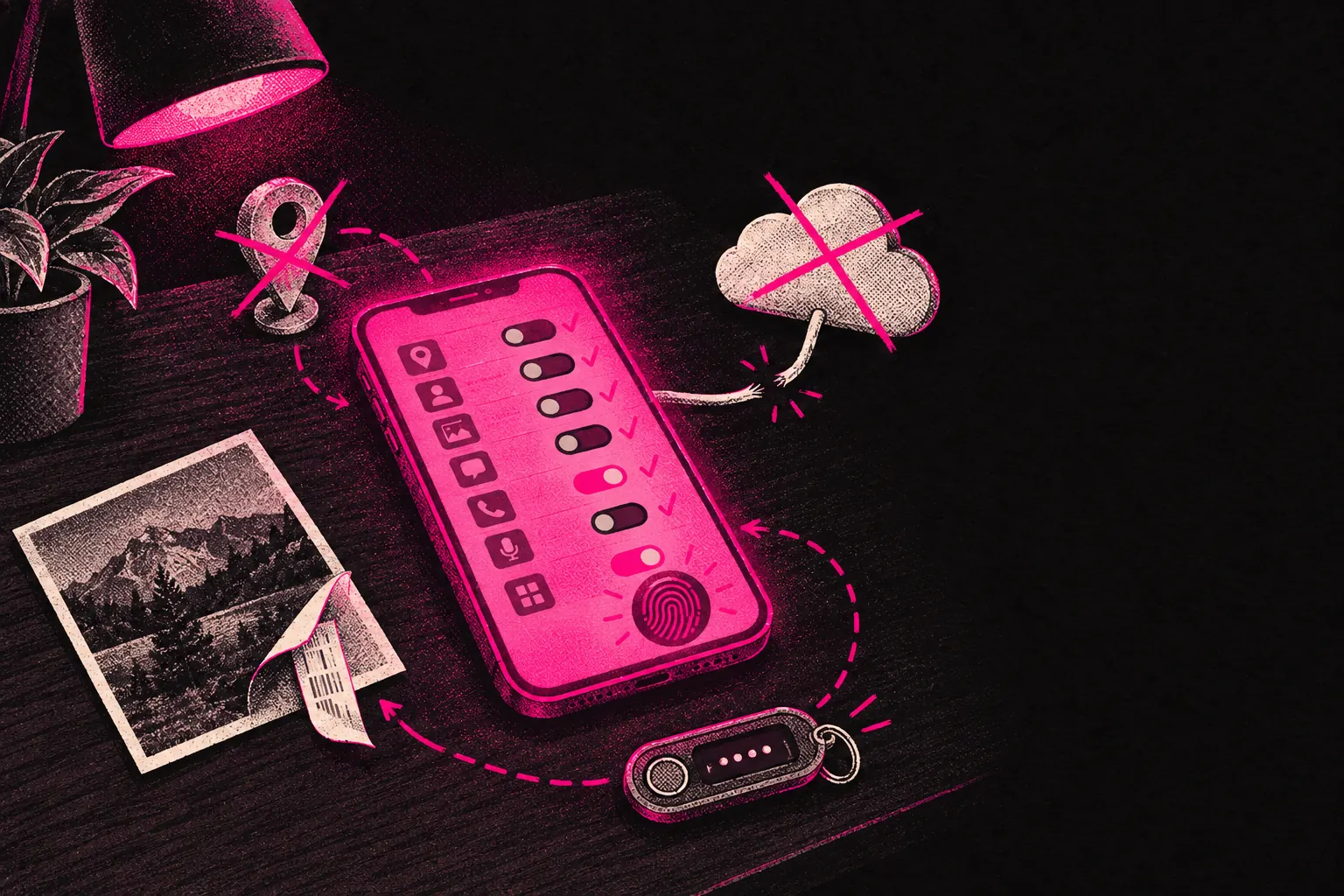
Start by turning off location for your camera, stripping hidden data from photos before you post them anywhere, and putting two-factor authentication on every creator account. After that, sort out cloud photo sync, lock screen previews and app locks.
Your phone is probably what you use to create, manage and promote your OnlyFans page, so it’s the first thing to lock down. By default it shares more about you than you’d guess, and a lot of that is hidden inside the files you upload. If you’re working anonymously or semi-anonymously, don’t skip any of the steps below.
For a wider look at staying anonymous as a creator, our guide on whether OnlyFans creators can remain anonymous goes into depth. This post sticks to your phone.
Location services: the most important setting to change
Every photo and video you take on your phone can carry GPS coordinates in the file’s hidden metadata, called EXIF data. If you upload an image without removing it, anyone who downloads the file could work out exactly where you were when you took it.
On iPhone
- Go to Settings > Privacy & Security > Location Services
- Scroll down to Camera
- Set it to Never
That stops your camera adding GPS data to new photos and videos. Photos already in your library may still have location data in them.
On Android
- Open the Camera app
- Go to Settings (usually a gear icon)
- Look for Location tags, GPS tags or Store location and turn it off
The wording depends on who made your phone (Samsung, Pixel and OnePlus all label it differently), but you’ll normally find it somewhere in the camera settings.
Why this matters so much
Even if nothing in shot gives away where you are, GPS metadata can point to your home address, your gym, your favourite coffee shop or anywhere else you shoot. You can’t see it by looking at the photo, but free tools make it very easy to read.
EXIF data stripping
Turning off camera location stops new photos carrying GPS data. That still leaves the photos already in your library, screenshots that carry metadata, and images other people send you.
Automatic stripping on upload
Don’t count on a platform to remove it for you. OnlyFans is generally said to strip EXIF data from uploads, but if you share content anywhere else first (Reddit, Twitter, Telegram or direct messages), those platforms may not strip it every time.
Manual stripping tools
- iPhone: the built-in Photos app can remove location data. Open a photo, tap the (i) icon, tap the location and choose the option to remove it. For lots of photos at once, set up an automation in the Shortcuts app, or download a free app such as “Metapho.”
- Android: apps like “Photo EXIF Editor” or “Scrambled Exif” strip all the metadata before you share.
- Desktop: ExifTool is a free command-line tool that strips metadata from lots of files at once.
Best practice
Strip metadata from every image and video before you share it anywhere outside OnlyFans. Make it a fixed step every time you post, so it never depends on you remembering.
Separate email accounts
Using your personal email for your OnlyFans account, your promotion accounts or any creator services is a big privacy risk.
What to do
Set up a completely separate email address for your creator identity. It should:
- Not include your real name
- Not be linked to your personal phone number for account recovery
- Be with a different provider from your personal email, if you can manage it
- Have a strong password you don’t use anywhere else
- Have two-factor authentication turned on
Recommended approach
Open a new Gmail or ProtonMail account just for creator work. Use it for your OnlyFans account, your promotion accounts on social media, anything to do with an agency, and any subscriptions or services you pay for as a creator.
ProtonMail is worth a look because it’s encrypted and based in Switzerland, which gives you stronger privacy protection than Gmail. For creator email on its own, the free plan is usually enough.
Two-factor authentication
If someone gets into your OnlyFans account, they can see your subscriber list, your earnings, your messages and your content. Two-factor authentication (2FA) adds a second check on top of your password.
Enable 2FA on these accounts (minimum)
- OnlyFans itself
- The email address linked to your OnlyFans
- All your promotion accounts on social media (Twitter, Reddit, Instagram)
- Any cloud storage you keep content in
Use an authenticator app, not SMS
A code by text message is better than nothing, but SMS codes are open to SIM swapping. That’s when someone talks your phone provider into moving your number onto their SIM. Use an authenticator app instead.
Apps worth using:
- Google Authenticator (simple and reliable)
- Authy (lets you back up your codes and use more than one device)
- 1Password or Bitwarden (if you already use one of them as your password manager)
Back up your 2FA codes
When you turn on 2FA, you’ll usually be given a set of backup codes. Keep them somewhere safe, like a password manager or a printed sheet stored somewhere secure. If you lose your phone and don’t have them, you could be locked out of your own accounts.
iCloud and Google Photos sync risks
Syncing photos to the cloud is handy for personal use. For creators, it opens up privacy risks.
The problem
If your personal and creator photos share one library, and that library syncs to the cloud, your creator content can be seen on any device signed in to that cloud account. That can include a family member’s device using your login, old phones you sold or passed on without signing out, and anyone who breaks into the account.
Solutions
Option 1: Turn off photo sync completely. This is the safest choice, but you lose automatic backup.
- iPhone: Settings > [Your Name] > iCloud > Photos > toggle off
- Android: Google Photos > Settings > Backup > toggle off
Option 2: Use a separate device for creator content. A phone or tablet used only for creator work, and never signed in to your personal cloud account, removes the overlap completely.
Option 3: Keep sync on, with a separate cloud account just for creator work. Sign out of your personal account on any device you use for creator content, and sign in to the creator account instead.
Shared Albums and “Shared with You”
On iPhone, “Shared with You” and Shared Albums can make photos turn up in places you didn’t expect. If you share an Apple ID with family, or you’ve got Shared Albums running, content in your library could show up on their devices.
Notification previews
If anyone glances at your lock screen, notification previews can give away private messages from subscribers, OnlyFans earnings alerts or messages from your promotion accounts.
On iPhone
- Go to Settings > Notifications > Show Previews
- Choose Never, or the middle option, which only shows previews once your phone has recognised you
- Or go into individual apps and turn previews off one app at a time
On Android
- Go to Settings > Notifications > Lock screen notifications
- Choose Hide sensitive content or Don’t show notifications at all
Per-app settings
At the very least, turn off lock screen previews for OnlyFans, your email app (if your creator email is on this phone) and any messaging apps you use for creator work.
Lock screen and device security
Use a strong passcode
A four-digit PIN is easy to guess, or to read over your shoulder. Use at least a six-digit code, or better still, a password with letters and numbers in it. Turn on Face ID or fingerprint so a long passcode doesn’t slow you down.
Auto-lock timing
Set your phone to lock itself after 30 seconds to one minute of inactivity. The longer it sits open, the more chance someone has to get into it.
Erase after failed attempts
iPhone and Android both give you the option to erase the phone after a number of wrong passcode attempts (usually 10). That protects your data if the phone’s stolen.
- iPhone: Settings > Face ID & Passcode > Erase Data
- Android: depends on the manufacturer, so look in Security settings
App-specific locks
Some apps let you add a second lock (a PIN, a password, Face ID or a fingerprint) to open them, even when your phone’s already open.
Apps that support this
- OnlyFans: check its settings for a PIN or lock option
- Most banking apps ask for their own login
- WhatsApp, Telegram and Signal all let you lock the app
- On iPhone, you can use Screen Time to require a passcode for specific apps
- On Android, a lot of manufacturers build in an “App Lock” feature
What to lock
At the very least, put a second lock on:
- OnlyFans
- Your creator email app
- Any messaging apps you use for creator work
- Your photo gallery, if it has creator content in it
- Notes apps, if you keep account details there
VPN usage
A VPN (virtual private network) encrypts your internet traffic and hides your IP address. For creators, that’s useful in two ways.
Privacy on public wifi
If you ever work from a cafe, a hotel or any other public wifi network, a VPN stops other people on that network from snooping on your traffic. That matters most when you’re logging in to accounts or uploading content.
IP address privacy
Your IP address can give away roughly where you are, often down to the city. Some messaging platforms and video call services show your IP address to the other person. A VPN hides it.
Recommended VPN services
- Mullvad: built around privacy, no email needed to sign up, and fairly priced
- ProtonVPN: made by the same team as ProtonMail, with a strong privacy record and a limited free plan
- NordVPN or ExpressVPN: better-known names, reliable and fast
You don’t need a VPN running all the time. Do use one on public wifi, and whenever you log in to accounts from places you’d rather keep private.
A privacy checklist
A quick recap of everything above:
- Camera location set to “Never”
- An EXIF stripping tool installed and part of your routine
- A separate email address for all creator accounts
- Two-factor authentication on OnlyFans, email and all social accounts
- Cloud photo sync turned off, or using a separate creator account
- Notification previews hidden on the lock screen
- A strong passcode with a short auto-lock timer
- App locks on OnlyFans and your other creator apps
- A VPN installed for public wifi and private browsing
Going further
Check these settings every so often, especially after a phone update. Updates can reset your choices or add new sharing features you’ll want to switch off.
For more on staying anonymous while you run an OnlyFans page, read our full guide on whether creators can stay anonymous. It covers keeping your identities apart, banking, and content that doesn’t give away who you are.
For other free resources, have a look at our free creator tools. There are calculators and guides, and you don’t have to hand over any personal information to use them.