Blog · Part of the Getting Started guide
Setting Up Two-Factor Authentication on OnlyFans
How to turn on two-factor authentication on OnlyFans, why an authenticator app beats SMS, where to keep backup codes and what to do if you're hacked.
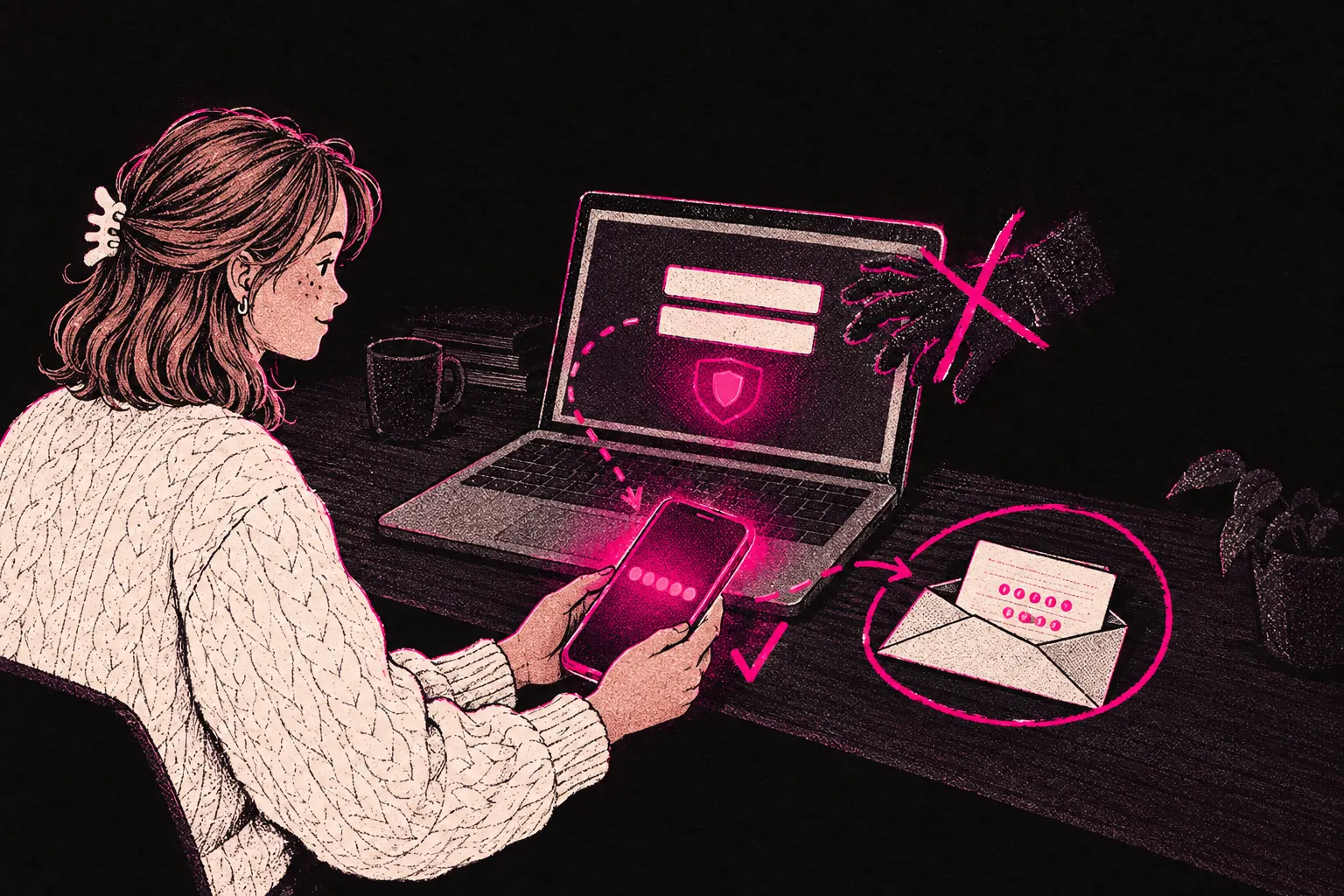
If you haven’t turned on two-factor authentication (2FA) on OnlyFans yet, do it today. It’s one of the most effective ways to stop someone getting into your account, and it takes less than five minutes. The steps are below.
Your OnlyFans account is your business. It holds your content, your subscriber list, your earnings history and your personal information. Anyone who gets in can steal your content, redirect your payouts, pretend to be you or lock you out completely.
What is two-factor authentication?
Two-factor authentication adds a second check on top of your password. As well as typing your password, you enter a temporary code from an app on your phone or from a text message. So even if someone knows your password, they can’t get in without that code.
Think of your password as the key to your front door. 2FA adds a second lock with a different key, and anyone trying to get in needs both.
Why it matters for OnlyFans creators
OnlyFans accounts are valuable targets. If someone gets into yours, they can reach:
- Your content library. That’s months or years of work that can be downloaded and shared without your permission.
- Your subscriber list, including personal details about your fans and your message history with them.
- Your payout information: bank details and earnings history.
- Your identity. The verification documents, real name and personal details you gave when you signed up are all in there.
Account takeovers aren’t rare. They happen through phishing emails, credential stuffing (where hackers try passwords leaked from other sites) and social engineering. The risk goes up a lot if you reuse passwords across sites or click links in suspicious messages. For more on spotting these threats, read our guide to OnlyFans scam awareness.
Without 2FA, one leaked password is all someone needs to walk straight into your account.
How to enable 2FA on OnlyFans
Setting it up takes less than five minutes. OnlyFans changes its menus from time to time, so if a label below doesn’t quite match, look for “Two-Step Verification” in your settings.
- Log in to your OnlyFans account on a desktop browser or the mobile site.
- Go to Settings. Click your profile icon, then choose “Settings” from the menu.
- Open the Account section.
- Find the security options. Scroll down until you see “Two-Step Verification” or “Two-Factor Authentication”.
- Choose your method. You’ll be offered an authenticator app or SMS. Pick the authenticator app if you can (the next section explains why).
- If you’re using an authenticator app, a QR code appears on screen. Open the app and scan it. The app then generates six-digit codes that refresh every 30 seconds.
- Type the current code from your app into the confirmation box on OnlyFans.
- Save any backup or recovery codes you’re given. Write them down and keep them somewhere safe. They’re your way back in if you lose your phone.
- Confirm and save. Once it’s verified, 2FA is on.
From now on, whenever you log in from a new device, you’ll need your password and a code from your authenticator app.
Authenticator app vs SMS: which should you choose?
OnlyFans gives you two ways to get your codes, and they aren’t equally secure.
SMS (text message)
SMS texts a code to your phone number. It’s better than nothing, but it has serious weaknesses:
- SIM swapping. Attackers can talk your mobile network into moving your number to a new SIM card. Once they’ve got your number, they get your 2FA codes.
- Interception. Text messages can be intercepted on the way to you, especially on older mobile networks.
- Delays. If you’ve got poor signal or you’re abroad, codes can arrive late or not at all.
Authenticator app (recommended)
An authenticator app generates codes on your own device. The codes aren’t sent over any network, which makes them much harder to intercept.
- Codes are generated offline, so you don’t need signal.
- SIM swapping can’t touch them.
- Codes refresh every 30 seconds, which makes them very hard to reuse.
Use an authenticator app whenever it’s offered. Only fall back on SMS if you really can’t use an app.
Recommended authenticator apps
All of these are free and well maintained:
- Google Authenticator (iOS and Android). Simple, works without an account and does the job.
- Microsoft Authenticator (iOS and Android). It has cloud backup, so you can restore your codes when you switch phones.
- Authy (iOS and Android). It has encrypted cloud backup and can keep your codes on more than one phone or tablet.
Any of them will work. Pick one, set it up and keep your phone secure.
Backup codes and recovery
Backup codes are single-use codes that get you in if you lose access to your authenticator app, for example if your phone is lost, stolen or factory reset. If OnlyFans gives you backup codes when you turn on 2FA, store them safely:
- Write them on paper and keep it somewhere secure.
- Save them in a password manager (not an unencrypted notes app on your phone).
- Don’t screenshot them and leave the image sitting in your camera roll.
If you use them all up, look in your OnlyFans security settings for the option to create new ones, and check every so often that you’ve still got valid codes. If you can’t find any backup codes, ask OnlyFans support how you’d recover your account without your phone. Do that now, before you ever need it.
Additional security measures beyond 2FA
2FA matters a lot, but it can’t protect your account on its own. Think of security as layers. The more layers you add, the harder it is for anyone to get through.
Use a strong, unique password
Make your OnlyFans password at least 16 characters long, randomly generated and used nowhere else. A password manager like 1Password, Bitwarden or the one built into your phone will create it and remember it for you. If your password is “cute” followed by some numbers, change it today.
Secure your email account
Your email is the master key to most of your online accounts, OnlyFans included. Anyone who gets into your email can reset your OnlyFans password and get around your other protections. Turn on 2FA for your email as well, use a strong password, and think about keeping a separate email address just for OnlyFans.
Be cautious with links and messages
Phishing is one of the most common ways creators get hacked. Don’t click links in messages claiming to be from OnlyFans unless you’re certain they’re real. If a DM asks for your password, it isn’t from OnlyFans. Our guide to protecting yourself from doxxing has more on keeping your personal information secure.
Review your active sessions
Every so often, check the active login sessions in your OnlyFans settings. If you see a device or location you don’t recognise, log it out straight away and change your password. If a management team works on your page, ask them which devices and locations their sessions will show, so you can tell theirs apart from a stranger’s.
Keep your devices updated
System and app updates often include security fixes. Running old software leaves you exposed to weaknesses that have already been patched.
What to do if your account is compromised
If you think someone has got into your account without permission, act straight away:
- Change your password. Do this before anything else.
- Check your payout details and make sure your bank information hasn’t been changed.
- Look through your content. Check whether anything’s been downloaded, deleted or posted without you knowing.
- Log out all sessions, so every device is disconnected from your account.
- Contact OnlyFans support through their official channels. Give as much detail as you can about what happened and when.
- Turn on 2FA if it wasn’t already on, or set it up again with a new authenticator app if your old one was compromised.
- Check your email account. If your OnlyFans was compromised, someone may have been into your email too. Change that password and turn on 2FA there as well.
For wider advice on staying safe online as a creator, read our post on whether OnlyFans is safe.
Security is part of running a business
Your OnlyFans page brings in money, so give it the same protection you’d give a business bank account. 2FA takes five minutes to set up and can save you months of damage from a single breach.
If you work with a management agency, security should come up from the very first conversation. At TalentGrow, you can see how we work before you sign anything. Our team works in your account through Infloww, a creator CRM, where it can see stats, make posts and send messages. It has no access to your bank details, payout information, email or social media accounts. The account stays in your name, payouts go to your bank, and you keep full control and can end our access at any time by changing your password. Contracts are month to month with no lock-in and no exit fees, on 14 days’ notice.
Take five minutes today. Turn on 2FA, save any backup codes and check that your password is strong and unique.
Want more tools for running your OnlyFans business? Try our free creator tools, including calculators for pricing, earnings and tax.