Blog
OnlyFans Scheduling: How to Queue Posts and Save Time
How OnlyFans scheduling works, what you can queue, how to batch a week of content, how often to post and which times suit fans in the UK and US.
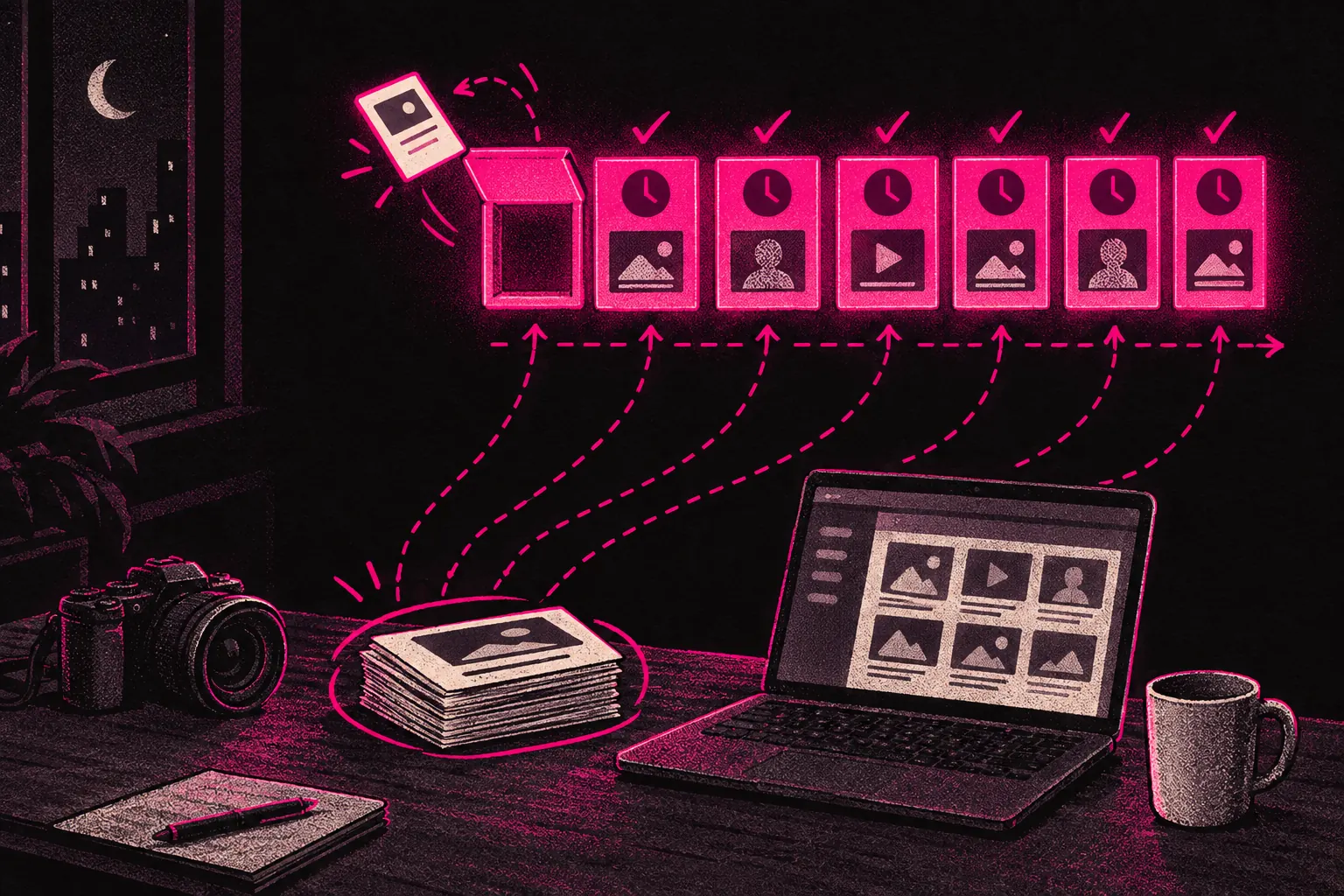
OnlyFans scheduling lets you shoot and edit content in one or two sessions, queue the posts, and have them go live on their own through the week. If you’re making and posting something by hand every morning, that pace is hard to keep up for long. Working ahead is how you keep the page active without being stuck to your phone.
The OnlyFans native scheduling feature
You can schedule posts straight from OnlyFans. It’s built into the post screen, and every creator has it.
How it works
When you create a post, look for the calendar icon or the “Schedule” option. Pick a date and time, and the post goes live on its own at that moment. You can schedule text posts, photo sets and videos.
What you can schedule
- Feed posts (on free and paid pages)
- Photo sets with captions
- Videos with captions
- Polls
Check these before you rely on them
Scheduling for these has changed over time, and the options aren’t always in the same place as post scheduling:
- Mass DMs or PPV messages
- Story posts
- Changes to your pinned post
- Price changes or promotions
Check the message, story and promotion screens in your own account to see what you can queue today. Anything you can’t, you’ll need to plan with an outside tool, send by hand, or hand to a management team. More on that below.
Practical limitations
The scheduler handles simple posts well, but it has some quirks you might run into:
- Moving a scheduled post to a different slot can mean deleting it and setting it up again.
- Time zones get confusing if your fans are spread across countries.
- It’s hard to see your whole schedule at a glance.
- Uploading and scheduling lots of posts in one go is slow.
None of these is a dealbreaker. They do mean the built-in tool works best as one part of your system, with some planning done outside it.
How to batch content creation
Batching means making your content on set days instead of a bit every day. You shoot several sets in one session, edit them together, and schedule them across the next few days or weeks.
The benefits of batching
Your page stays active on days you’re busy, ill or just not in the mood to create. You don’t have to make something every single day to keep it going.
The content often comes out better, too. Once the lighting’s set up, your makeup’s done and the room looks right, you’ve got time to settle in and try things, which is hard to do when you’re squeezing a quick shoot in before work.
It saves time. Setting up and packing away eat a lot of your shooting time. Doing that once for a batch beats doing it seven times for seven separate posts.
You also get days for making things and days for running the business. Shoot on Monday, edit on Tuesday, schedule on Wednesday, then spend the rest of the week on DMs, fans and promotion without having to make anything new.
A practical batching schedule
A working week for a creator who batches might look like this:
- Monday, shoot day. Spend three to four hours shooting. Aim for enough to cover the next seven to ten days, with a few outfits, a few setups, and a mix of photos and video.
- Tuesday, edit day. Go through your raw files. Colour correct, crop, add a watermark and export everything to a “ready to post” folder.
- Wednesday, schedule day. Upload and schedule the week. Write the captions, set the times and check everything twice.
- Thursday to Sunday, fans and promotion. Reply to DMs, talk to subscribers, promote on other platforms and plan next week’s themes.
Treat that as a starting point you can bend. Some creators batch every fortnight. Others shoot a month of feed content in one day. What suits you depends on the kind of content you make, what your fans expect and how much time and energy you have.
Planning a week of content in advance
Content mix
A balanced week on OnlyFans often looks something like this:
- 2 to 3 photo sets (the bulk of your feed)
- 1 to 2 video clips (more work, and fans tend to react more)
- 1 to 2 casual or behind-the-scenes posts (these help fans feel they know you)
- 1 PPV message (where a lot of the extra money comes from)
- Stories every day or most days (you may have to post these live, but you can still plan them)
Mapping it to a calendar
Take a simple weekly calendar, on your phone or on paper, and give each day a content type:
| Day | Content Type | Notes |
|---|---|---|
| Mon | Photo set | Scheduled |
| Tue | Short video | Scheduled |
| Wed | BTS/casual | Scheduled |
| Thu | Photo set | Scheduled |
| Fri | PPV message | Scheduled or manual |
| Sat | Video clip | Scheduled |
| Sun | Poll or engagement post | Scheduled |
A template week gives you somewhere to start. If Thursday is photo set day, all you have to decide on Thursday is which set.
Optimal posting frequency
There’s no single right answer. Treat these ranges as a place to start, and test them against your own stats:
- At the low end, three to four feed posts a week. Post less than that and subscribers may start to wonder what they’re paying for.
- In the middle, five to seven posts a week, with a mix of content types.
- At the high end, several posts a day. That can suit creators with big followings who rely on volume, but it takes far more production.
Whatever number you pick, choose one you can keep up. If you post every Monday, Wednesday and Friday, subscribers start to expect it, and meeting that expectation builds trust. A burst of posts followed by a week of silence does the opposite.
Time zones and audience analytics
Understanding your audience’s location
Start with what your OnlyFans statistics show about likes, comments and earnings over time. Depending on what’s there, look for:
- The hours your posts get the most likes and comments
- When your DMs are busiest
- Where your fans are, if your stats break it down by country
If a lot of your fans are in the US, try scheduling posts for late afternoon UK time. That lands around lunchtime on the US East Coast.
Scheduling for multiple time zones
The simplest fix is to find the overlap. If you’re in the UK with a mix of UK and US fans, try early evening UK time (5pm to 8pm). British fans have finished work, and it’s the afternoon on the US East Coast and late morning on the West Coast.
If your stats clearly show one time zone dominates, schedule for that one. Either way, test it: post at different times and track which slots get the most likes and comments in the first hour.
Maintaining consistency without burnout
Scheduling won’t fix burnout on its own, but it saves time and makes busy or rough weeks easier to get through. Set things up so your page keeps its quality and its posting pattern on the weeks you’re not at your best.
Building a content buffer
Try to keep at least one week of content scheduled ahead. Two weeks is better. Then a bad week, an illness or a break you badly need doesn’t stop your page, and your subscribers still get their posts.
Permission to batch and rest
Some creators feel guilty about scheduling, as if it’s cheating fans. It isn’t. Subscribers see what you post and whether it keeps coming. Nobody can tell whether you uploaded it thirty seconds before it went live or a week before. Magazines plan their issues months ahead, and if you run your page as a business you can plan too.
When to go live versus scheduled
Some things can’t be scheduled. DM conversations, stories and chatting in real time still need you there. Scheduling your feed leaves you more time for those personal parts of the job.
How agencies handle scheduling
If scheduling is getting away from you, a management agency can take it on. That can include:
- A shared content calendar planned weeks ahead
- Posting times picked from the page’s own stats
- Keeping the feed, PPV and DMs queued and on track together
- Tracking how posts perform at different times and frequencies
- Keeping a buffer so the page doesn’t go quiet
At TalentGrow, posting is part of what the team runs, alongside chat and promotion, and you get a report every Monday on how the page is doing. The team works in your account through Infloww, a creator CRM, where it can see your stats, make posts and send messages. It can’t see your bank or payout details, your email or your social media accounts. The account stays in your name, payouts go to your bank, and you keep full control and can end our access at any time by changing your password. If you want to see what that looks like day to day, our page on how we work explains the process.
If scheduling and content planning are stretching you thin, and you’d rather concentrate on making content while someone else handles the calendar, you can see if we are a good fit.
Tools to complement native scheduling
OnlyFans does the posting. For the planning around it, you might want outside tools:
- Google Calendar for planning your week visually
- Notion for a content database where each item has a status
- Trello for a board that moves content along (To Shoot > To Edit > Ready > Scheduled > Posted)
- Google Sheets for simple tracking of posting dates and how each post did
Our tools section has more options that fit into a creator’s routine.
Getting started
If you’re posting day by day with no schedule right now, make the switch over a few weeks:
- This week, shoot enough content for three extra days.
- Next week, schedule those three posts ahead, and shoot fresh content for the week after.
- In week three, you should have a buffer. Schedule a whole week in one go.
- After that, keep the buffer topped up and make it bigger, and adjust based on what works.
It won’t feel smooth straight away. Once you’ve got a week queued up and know what’s going live tomorrow without touching your phone, it gets much easier to keep going.