Blog · Part of the Safety and Privacy guide
Backing Up Your OnlyFans Content: Never Lose Your Work
A practical guide to backing up your OnlyFans content with the 3-2-1 rule, cloud storage options, encryption, and automated workflows.
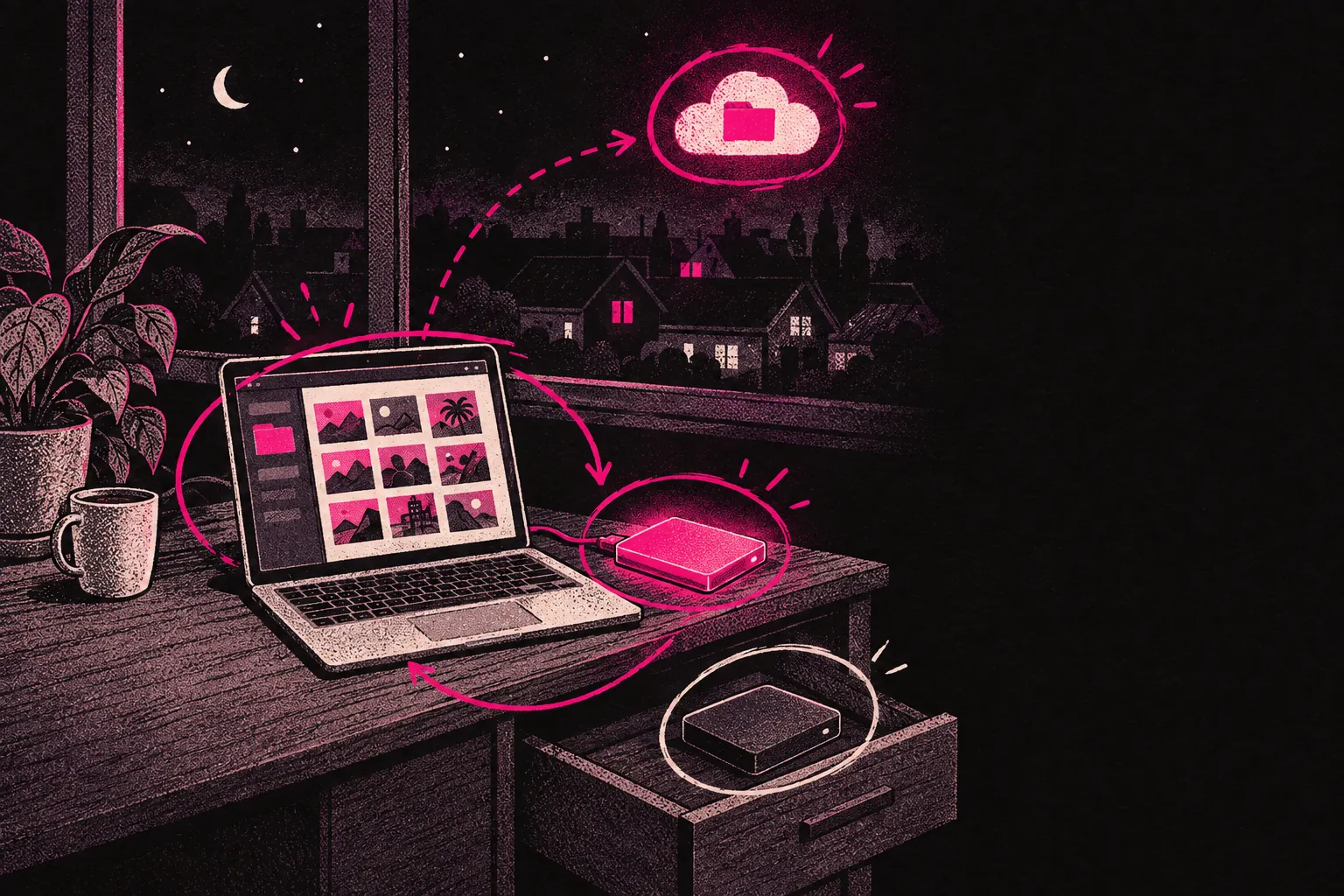
The safest way to back up your OnlyFans content is the 3-2-1 rule: three copies, on two types of storage, with one kept somewhere other than your home. For most creators that means a cloud sync service plus an external hard drive, which costs less than you might expect.
You’ve probably spent months, maybe years, making content. Hundreds of photos, dozens of videos, captions, DM scripts and custom requests. That library took a huge amount of work, and it’s what your income is built on.
Now picture your phone breaking, your laptop being stolen or a cloud service closing your account without warning. Without a backup, all of that work is gone.
It’s not a far-fetched scenario. Hard drives fail. Phones get dropped in water. Cloud services change their terms and suspend accounts that hold adult content. The protection against all of them is the same. Keep copies somewhere else.
The 3-2-1 backup rule
The 3-2-1 rule is the standard approach to protecting data, used by everyone from photographers to film studios. It’s simple:
- 3 copies of your data
- 2 different types of storage (for example, cloud and a physical hard drive)
- 1 copy kept off-site, away from where you normally work
For an OnlyFans creator, it might look like this:
- The original files on your computer (copy one, storage type one)
- Those files synced to cloud storage (copy two, storage type two, and off-site)
- An external hard drive kept at a different address (copy three, and off-site too)
If your laptop dies, you’ve got the cloud copy. If the cloud service suspends you, you’ve got the hard drive. If your home floods, the off-site copy survives. You need all three situations covered.
Cloud storage options
Prices below are rough and change from time to time, so check the current price before you sign up.
Google Drive
You get 15GB free, then around two pounds a month for 100GB or around eight pounds a month for 2TB.
It’s widely used and reliable, it works on every device, the search is decent and it’s easy to share folders with people you work with. The catch is Google’s terms of service, which prohibit “sexually explicit content” in shared or public files. Enforcement on private files has been patchy. Some creators say they’ve never had a problem, and others would rather not risk it.
It suits creators who already use Google’s apps and keep their files in private folders.
iCloud
You get 5GB free, then 50GB for 99p a month, 200GB for two pounds 99 a month or 2TB for eight pounds 99 a month.
If you shoot on an iPhone, it just works. Your photo library backs up automatically and reliably. It’s less flexible for sharing with a team, it’s tied to Apple devices, and you get very little control over which folders sync.
It suits iPhone users who want backups to happen without thinking about them.
Dropbox
You get 2GB free, or 2TB for around ten pounds a month on the Plus plan.
Dropbox is excellent at letting you choose which folders sync to which device. It keeps earlier versions of files, so you can recover something you deleted or saved over, and it’s good for sharing with a team. It costs more per gigabyte than the others, and the free plan is tiny.
It suits creators who work with a team or a management agency and need shared folders.
Backblaze B2 or similar object storage
You pay as you go, roughly 0.5p per gigabyte a month.
It’s extremely cheap for large amounts of storage and it’s built for keeping files long term. It isn’t beginner friendly, though. It takes some setting up, you can’t browse folders the way you would in a normal cloud drive, and it’s more technical overall. Read its acceptable use policy before you upload.
It suits creators with big archives, running to several terabytes, who want cheap and reliable long-term storage.
External hard drives
Cloud storage is convenient, but a physical drive you control still has an important place in your setup.
What to look for
- Capacity: 2TB at least for most creators, and 4TB or more if you shoot a lot of video.
- Connection: USB-C or Thunderbolt for fast transfers.
- Portability: a small drive powered through its cable, with no separate plug, is easier to keep off-site.
- Reliability: stick with established brands. Western Digital, Seagate and Samsung all make good drives.
Cost comparison
As of mid-2026:
- 2TB portable external drive: 50 to 70 pounds
- 4TB portable external drive: 80 to 110 pounds
- 4TB desktop external drive: 70 to 90 pounds
You pay once, with no monthly fees, which makes a drive very good value for long-term storage.
Rotation strategy
If you want a proper off-site backup, use two external drives and swap them. Keep one at home for regular backups and the other somewhere else, like a family member’s house, a safe deposit box or your office. Swap them over once a month. That way your physical backups are never more than a month out of date, wherever they are.
Dedicated NAS (Network Attached Storage)
If you make a lot of content or want a more professional setup, a NAS gives you storage on your home network that any of your devices can reach.
Advantages
- Several drive bays, so it can keep copies across drives in case one fails (RAID)
- Reachable from any device on your network
- Can run backups automatically on a schedule
- Some models let you reach your files from outside the house, like a private cloud
- No monthly fees apart from electricity
Considerations
- A bigger upfront cost, 200 to 500 pounds for the unit plus the drives
- Some technical setup
- You still need an off-site backup to be fully protected
Synology and QNAP both make NAS boxes aimed at home users, with guided setup. For most individual creators, a NAS is more than you need. If you run your page as a serious business with a big content library, it can be worth the money.
What to back up
Photos and videos aren’t the only things worth saving. A complete backup covers all of these.
Raw files
Your unedited, full-quality photos and footage. You can’t replace them, and they let you re-edit old content later as your skills improve or tastes change.
Edited files
Your finished, watermarked content that’s ready to post. Lose these and you’ll have to redo all your editing.
Captions and copy
The text you write for posts, PPV messages, welcome messages and DM scripts. If you’ve put time into captions that work, they’re worth keeping.
DM scripts and templates
If you use templates for common DM conversations, custom request negotiations or keeping fans engaged, keep copies. Rewriting them from scratch is tedious.
Spreadsheets and planning documents
Your content calendar, posting tracker, financial records and any other planning documents. They hold everything you know about how your business runs.
Account settings and promotional materials
Screenshots of your bio, your pricing, your menu items and any promo graphics you’ve made. If you ever have to rebuild your account, they’ll save you a lot of time.
Automatic backup workflows
Manual backups only work if you remember to do them. Automatic ones take forgetting out of the picture.
Cloud sync as automatic backup
Set up a folder on your computer that syncs to cloud storage, such as Google Drive, Dropbox or iCloud Drive. Every file you save there gets backed up straight away, with nothing extra for you to do.
In practice, you save all your edited content to that folder, it uploads automatically, and that’s it.
Scheduled external drive backups
On a Mac, Time Machine backs up your whole system to an external drive automatically whenever it’s plugged in. Plug the drive in once a week, let it run and unplug it.
On Windows, File History or other tools like Macrium Reflect do the same job.
If you’d rather do it by hand, set a weekly reminder to plug in your external drive and copy your content folders across.
Automated cloud-to-cloud backup
Services like MultCloud or rclone can copy files from one cloud service to another automatically. Your Google Drive could copy itself to Backblaze, for example, so you’ve got two cloud copies without lifting a finger.
Encrypting sensitive content
Your content is private. Cloud providers already encrypt files while they’re uploading and while they’re stored, but you may want a layer that only you control.
Why encrypt
- If someone gets into your cloud account, encrypted files stay unreadable.
- If a device is stolen, an encrypted drive keeps your content safe.
- It’s reassuring to know nobody else can open your files.
Simple encryption options
VeraCrypt is free. It creates encrypted containers or encrypts whole drives, and it’s open source, well established and works on Mac, Windows and Linux.
Cryptomator has free and paid versions and is made for encrypting files before they sync to the cloud. It creates a virtual encrypted drive that syncs as normal but can’t be read without your password.
Your computer’s built-in disk encryption is the other option: FileVault on a Mac and BitLocker on Windows. It encrypts the whole drive, so nobody can get at your data if the device is stolen.
A practical approach
At the very least, turn on full-disk encryption on your computer and phone. That means FileVault on a Mac or BitLocker on Windows, and iPhones and Android phones encrypt by default once you set a passcode. For cloud storage, Cryptomator adds encryption that’s easy to live with and doesn’t get in the way of how you work.
Cost comparison summary
| Solution | Monthly cost | Storage | Off-site | Automatic |
|---|---|---|---|---|
| Google Drive 2TB | ~8 pounds | 2TB | Yes | Yes (sync) |
| iCloud 2TB | ~9 pounds | 2TB | Yes | Yes (sync) |
| Dropbox 2TB | ~10 pounds | 2TB | Yes | Yes (sync) |
| Backblaze B2 (1TB) | ~4 pounds | Pay-as-you-go | Yes | With setup |
| External drive 4TB | ~90 pounds (one-off) | 4TB | If stored off-site | No |
| NAS (2-bay + drives) | ~350 pounds (one-off) | 4TB+ | No (unless remote) | Yes (local) |
For most creators, the best value is one cloud sync service at eight to ten pounds a month plus one external drive for under 100 pounds. That covers the 3-2-1 rule for about the price of a few PPV sales a month.
Getting started today
If you don’t have any backups at the moment, work through this list:
- Today: turn on full-disk encryption on your computer and phone.
- This week: sign up for a cloud sync service and start uploading your content library.
- This month: buy an external drive and copy everything onto it.
- From then on: set a monthly reminder to update your external drive.
You don’t have to do it all at once. Just don’t leave your content in one place for longer than you have to, because one broken drive is all it takes to lose it.
For more tools to help with your content workflow, have a look at our tools page. If you want one place that covers all the basics, the creator kit brings the essentials together.